
If you’re experiencing trouble sending or updating your WhatsApp status, don’t panic. This is a common issue that can be easily resolved.
In this article, we’ll guide you through the steps to fix the problem and get your WhatsApp status updated smoothly again.
Understanding the WhatsApp Status Sending Issue
Before we dive into the solutions, it’s important to understand the problem at hand. The WhatsApp status feature allows users to share pictures, videos, and text with their contacts.
However, when the status gets stuck on “sending,” it can be frustrating, especially if you’re trying to share an important update.
WhatsApp is one of the most popular messaging apps in the world, with over 2 billion active users.
With such a large user base, it’s not surprising that occasional issues can arise. One of the most common issues faced by WhatsApp users is the problem of status messages getting stuck on “sending.”
Why is my WhatsApp Status Stuck on Sending Updates?
First, let’s take a look at some of the most common reasons why WhatsApp status gets stuck:
- A poor internet connection
- Outdated WhatsApp version
- Cache and data clutter
These issues can cause the status message to get stuck in a loop, where it keeps trying to send but never actually goes through. This can be frustrating for users who are trying to share important updates with their contacts.
How the WhatsApp status feature works
Before we jump into the troubleshooting steps, let’s take a quick look at how the WhatsApp status feature works. Essentially, the status is uploaded to the WhatsApp server, and then it is downloaded by your contacts.
During this process, a lot of data is transferred, which is why a good connection is critical for a smooth experience.
When you post a status update, it is first uploaded to the WhatsApp server. Once it is uploaded, it is then downloaded by your contacts. If there is an issue with the upload or download process, the status message can get stuck in limbo.
How to Fix WhatsApp status Stuck on sending issue
Now that we understand the problem and how the WhatsApp status feature works, let’s take a look at some troubleshooting steps:
- Check your internet connection: A poor internet connection is one of the most common reasons for the WhatsApp status to get stuck. Make sure you have a strong and stable internet connection before posting your status update.
- Update WhatsApp: An outdated version of WhatsApp can also cause issues with the status feature. Make sure you have the latest version of WhatsApp installed on your device.
- Clear cache and data: Over time, WhatsApp can accumulate a lot of cache and data, which can cause issues with the app’s performance. Clearing the cache and data can help resolve the issue.
- Restart your device: Sometimes, simply restarting your device can help resolve the issue. This can help clear out any temporary glitches or bugs that may be causing the problem.
By following these troubleshooting steps, you should be able to resolve the WhatsApp status sending issue and get back to sharing your updates with your contacts.
Basic troubleshooting steps
Now that we understand the issue, let’s move on to the solutions. Here are a few basic troubleshooting steps that you can try:
Check your internet connection
The first and most obvious step is to make sure that your internet connection is stable. If you’re on a weak or poor connection, your WhatsApp status won’t be able to upload or download correctly.
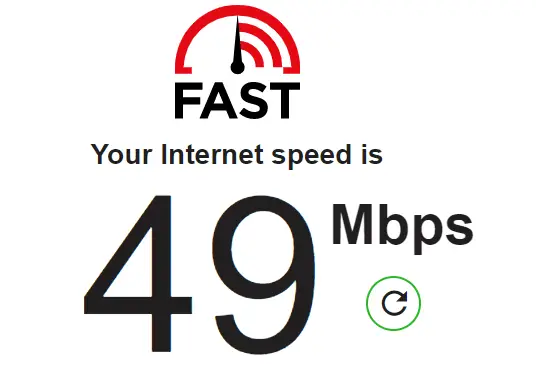
This can be caused by a variety of factors such as distance from the Wi-Fi router, interference from other devices, or network congestion.
If you’re experiencing issues with your Wi-Fi connection, try moving closer to the router or resetting it. You can also try switching to a different Wi-Fi network or using your cellular data.
If you’re using cellular data, make sure that you have sufficient data balance and that your network signal is strong enough.
Restart your device
Another easy fix is to simply restart your device. This can often clear up any temporary glitches that may be causing the issue. To do this, hold down the power button and select “restart” or “power off.”
Restarting your device can also help resolve any other issues that you may be experiencing with your phone or tablet. It clears up the device’s memory and refreshes the system, which can help improve performance and fix bugs.
Update WhatsApp to the latest version
If your WhatsApp version is outdated, this can also trigger the status sending issue. Make sure to update your WhatsApp to the latest version available on either the Google Play Store or the Apple App Store.
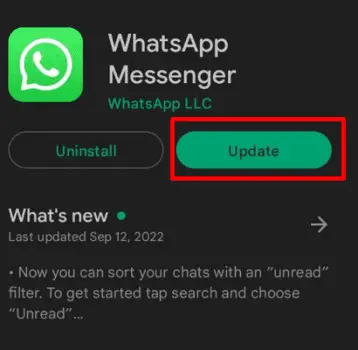
This will ensure that you have the latest bug fixes and improvements installed.
Updating your apps regularly is important to ensure that they continue to work smoothly and securely. App developers release updates to fix bugs, improve performance, and add new features.
By keeping your apps up-to-date, you can avoid potential issues and enjoy the latest functionality.
By following these basic troubleshooting steps, you should be able to resolve the issue with your WhatsApp status. If you continue to experience problems, you may need to contact WhatsApp support or seek assistance from a technical expert.
Clearing WhatsApp cache and data
If the above steps did not work, it’s time to move onto some more advanced solutions. Clearing your WhatsApp cache and data can help remove any excess baggage that is slowing down your WhatsApp status.
However, keep in mind that this process will delete your chat history in the process.
When you use WhatsApp frequently, it stores temporary files and data on your device. This cache helps the app load faster, but over time, it can accumulate and slow down your device.
Clearing your WhatsApp cache and data is a great way to free up space on your device and improve the app’s performance.
How to clear cache on Android devices
If you’re using an Android device, follow the steps below to clear your WhatsApp cache:
- Go to “Settings”
- Select “Apps”
- Scroll down and select “WhatsApp”
- Select “Storage” and then “Clear cache”
Clearing your WhatsApp cache on Android devices is a simple process. Once you’ve cleared the cache, you should notice an improvement in the app’s performance.
How to clear cache on iOS devices
On iOS devices, the process is a bit different:
- Open “Settings”
- Select “General” and then “iPhone Storage”
- Find WhatsApp and select it
- Select “Offload App” to clear cache and data
Clearing your WhatsApp cache on iOS devices is just as easy as on Android devices. Once you’ve cleared the cache, you should notice an improvement in the app’s performance.
The impact of clearing cache and data on your WhatsApp
Before you clear your WhatsApp cache and data, it’s important to note that this process will delete your chat history, so make sure to back up any important messages or conversations. Additionally, clearing cache and data will also log you out of WhatsApp, so make sure to have your login credentials handy.
Clearing your WhatsApp cache and data is a great way to improve the app’s performance and free up space on your device.
However, it’s important to weigh the benefits against the potential loss of chat history and the inconvenience of logging back in.
If you’re experiencing issues with your WhatsApp, clearing the cache and data is a great first step to try. If that doesn’t work, there are other advanced solutions you can try, such as reinstalling the app or resetting your device.
Reinstall WhatsApp
If all else fails, it’s time to uninstall and reinstall WhatsApp. This will completely remove any remnants of WhatsApp from your device and then install a fresh copy. Make sure to backup your chat history before uninstalling.
Reinstalling WhatsApp is a simple process that can be done in just a few steps. However, it is important to note that reinstalling WhatsApp will erase all your chat history.
Therefore, it is essential to back up your chat history before proceeding with the reinstallation process.
There are two ways to back up your chat history on WhatsApp. You can either use Google Drive (for Android users) or iCloud (for iOS users).
To back up your chat history using Google Drive, follow these steps:
- Open WhatsApp and go to “Settings.”
- Select “Chats.”
- Select “Chat backup.”
- Select “Back Up Now.”
Once the backup is complete, you can proceed with the reinstallation process.
Uninstalling and Reinstalling WhatsApp on Android
If you’re using an Android device, follow these steps:
- Go to “Settings.”
- Select “Apps.”
- Find WhatsApp and select it.
- Select “Uninstall.”
- Go to the Google Play Store and reinstall WhatsApp.
Once the installation is complete, open WhatsApp and log in with your credentials. You’ll be prompted to restore your chat history from the backup you created earlier. Simply follow the prompts to complete the process.
Uninstalling and Reinstalling WhatsApp on iOS
If you’re using an iOS device, the process is a bit different:
- Press and hold the WhatsApp icon.
- Tap the “X” in the corner.
- Select “Delete.”
- Go to the App Store and reinstall WhatsApp.
Once the installation is complete, open WhatsApp and log in with your credentials. You’ll be prompted to restore your chat history from the backup you created earlier. Simply follow the prompts to complete the process.
Restoring Your Chat History After Reinstallation
After reinstalling WhatsApp, you can restore your chat history by logging in with your credentials and following the prompts. You’ll be prompted to restore your chat history from the backup you created earlier.
It’s important to note that if you didn’t back up your chat history before uninstalling WhatsApp, you won’t be able to restore it. Therefore, it’s always a good idea to back up your chat history regularly to avoid losing important conversations.
WhatsApp is a powerful messaging app that allows you to stay connected with your friends and family. However, if you’re experiencing issues with the app, reinstalling it can often solve the problem.
By following the steps outlined above, you can easily uninstall and reinstall WhatsApp and restore your chat history in just a few minutes.
Conclusion
That’s all for now! We hope that this guide helped you troubleshoot and fix your WhatsApp status issue. Remember to try the basic fixes first, and then move onto more advanced solutions if necessary.
As always, make sure to backup your data before making any changes, and reach out to WhatsApp support if you need further assistance.